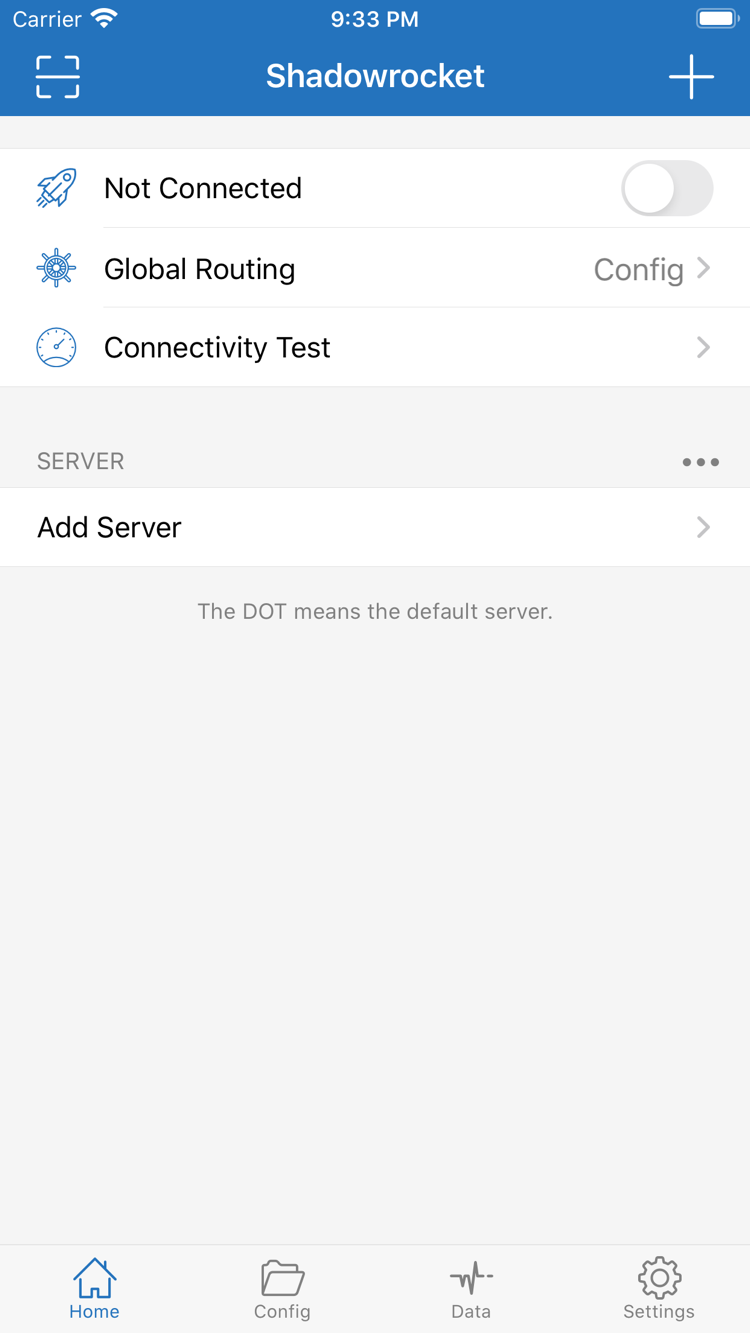
iPhone / iPad client for rule-based routing with your existing configuration. The app is a one-time purchase; check the App Store listing for purchase and compatibility details.
Shadowrocket Configuration Guide is the official Shadowrocket website and manual. First verify the purchase listing, then prepare your own server details or subscription, and finally check the mode and connection results. Your app purchase record and network configuration are two separate things.
Home / Config / Settings
Shadowrocket Core Settings
Identify whether you need help importing settings, choosing a route, or fixing a connection, then go to the relevant section. The examples below reference rules and settings; they are not screenshots of the app.
Choose a policy by destination and order
Rule-based routing directs different requests to different policies. In Home, set Global Routing to Config, then open Config to confirm which file is active. Rules in the Rule section are matched from top to bottom, so put specific domain rules before broader ones and leave FINAL at the end. The first line on the right sends example.com and its subdomains through PROXY; the second sends any remaining unmatched requests through DIRECT. These domains are syntax examples only and do not replace your own requirements or server configuration.
On Demand starts a connection when your configured network conditions are met; it does not mean you must manually switch on the Home control every time. Open Settings and review On Demand to understand the active conditions before changing them. If the connection repeatedly comes back on, check this setting and the system VPN status rather than looking only at the last switch action. First establish a connection manually and verify access, then configure On Demand for your actual use. After making changes, observe the result under the relevant network conditions so automatic activation is not mistaken for an unsaved configuration.
Support for multiple protocols lets you use different types of server configurations; changing Type alone will not connect to the same service. In Home, open Add Server, choose a protocol that matches your existing details, and check the address, port, authentication, and transport settings one by one. Shadowsocks, VMess, VLESS, Trojan, Hysteria2, and WireGuard each require different fields; do not reuse one set of parameters for another type. Keep TLS and SNI values consistent with the server settings. Check the entered details and make sure they are complete rather than disabling certificate verification as a substitute for troubleshooting.
A subscription retrieves server entries from an address you already have, making it useful for managing a set of configurations in one place. In Add Server, choose Subscribe, enter your own subscription URL, and save it. Then return to Home to check the group and its entries. Updating a subscription fetches its contents again; it does not guarantee that the current connection will work. If an update fails, check URL access, content format, and server connectivity separately. Subscription URLs may contain access credentials and should not be shared publicly. This site explains how to import and update subscriptions; it does not provide, sell, or recommend nodes or subscriptions.
Server lists and configuration files are different
Configuration files managed in Config determine DNS, rules, and other request handling; they are not the same as the server list in Home. When reviewing a file, start with General, then check Rule, followed by Host and URL Rewrite as needed. Keep a copy of the original before editing. After saving, confirm which file is selected and make sure Global Routing is set to Config. If you use iCloud sync, check each item on the destination device. Syncing and restoring a purchase are separate processes, and neither replaces checking the settings before connecting.
Test connectivity, DNS resolution, and rules separately
Start troubleshooting with what you observe, and distinguish an established connection from a successful request to its destination. Use Connectivity Test in Home to check reachability, then review Diagnostics in Settings for DNS and connection issues. Data can help you inspect traffic, but traffic activity does not mean every request succeeded. Results also depend on the current network and test destination, so one result cannot determine whether all access is working. Change one setting at a time, retry the same request, and note the mode, configuration file, and matched policy to compare results.
Global Routing: check the current mode, then the rules
Config mode handles requests using the active configuration file. Proxy mode routes requests through the proxy, while Direct mode connects directly. These are routing modes, not server protocols or subscription update methods. To check whether rules are working, switch back to Config and confirm that the active file contains the rule you want to test. Temporarily switching to Proxy can help narrow down an issue, but restore the mode you need after testing; otherwise, a mode difference may be mistaken for a broken rule.
App Store / Compatibility
iPhone and iPad App Access Guide
The App Store is the only way to get the app. Check the App Store listing for system requirements, device compatibility, and whether Universal Purchase is supported.
iPhone
Before purchasing, check the App Store listing for compatibility and confirm the app’s identity. Your first connection requires authorization to add a system VPN configuration. Make sure you initiated the connection before following the system prompts.
After installing, prepare your existing details before adding them in Home. If the switch shows connected but webpages will not load, check the server, Global Routing, DNS, and rules. A connected status alone does not confirm that a request succeeded.
If you already purchased the app, first look for it in the Purchased section of the App Store using the same Apple ID. Check the App Store listing for purchase eligibility on iPhone and iPad, Universal Purchase availability, and system requirements.
On iPad, use Home, Config, and Settings to check the relevant information, just as you would on iPhone. The layout may differ, but the steps do not need to be reorganized. After restoring the app, separately verify your server details, active configuration file, and sync status.
These steps assume you already have your own subscription or server details. Start with a connection process you can verify, then consider adding rules and automation.
01 / Home · Add Server
Add a server or import an existing subscription
Open Home and tap Add Server. For a single server, fill in the details for its Type. For an existing subscription, choose Subscribe, enter your own URL, and save it. Check more than the display name: confirm the protocol, address, port, and authentication fields match your details. If your details are provided as a QR code, use Scan QR Code and verify the imported content afterward.
After saving, confirm the entry appears in the expected group. A successful subscription fetch only means the client received its contents; it does not prove that a server in the list can connect. If the list is empty, check the import process and content format instead of repeatedly changing Global Routing. Keep links and QR codes containing authentication details secure. When asking for help, share only redacted field details.
02 / Global Routing · Config
Choose a mode and the active configuration
Return to Home, select the server you want to use, and check Global Routing. For everyday rule-based routing, choose Config and open Config to confirm which file is active. Proxy and Direct route traffic through a proxy or directly, respectively; use them only when you understand their effects. Neither replaces a valid rule file or fixes server settings automatically.
When getting started, keep your configuration clear and easy to understand. Avoid combining rules from multiple sources at once. When editing Rule, add specific destinations first, then broader matches, and check FINAL last. Saving a file and selecting it are separate steps; if nothing changes after an edit, first make sure you edited the same file that is in use.
03 / Home · Connectivity Test
Connect and test an actual request
Turn on the connection switch in Home and follow the system prompts to authorize the VPN configuration. Then run Connectivity Test and try opening a destination you need to access. Keep the network and destination consistent during testing, and note the current server, mode, and configuration file. That makes it possible to tell what changed after your next adjustment.
If the connection is established but access still fails, check server settings, Global Routing, DNS, and rules in that order, changing only one item at a time. Use Data to see whether requests generate traffic, then check Diagnostics for more clues. Traffic, a successful test, and a webpage loading are different kinds of results. Evaluate them against the specific request rather than relying on a single status indicator.
Shadowrocket is a closed-source commercial app. Verify its identity using the developer, official icon, and app ID on the App Store—not just the name in search results.
Check the developer, icon, and app ID
On the App Store product page, confirm that the developer is Shadow Launch Technology Limited, the app is named Shadowrocket, and its icon matches the official icon used on this site. The app ID in the product URL should be 932747118. A similar name in search results is not a substitute for checking all three details. Opening the product page from this site’s official app page can save you from having to distinguish between similar search results.
The icon should match the official icon in this site’s header, the app ID confirms which product the page points to, and the developer name helps identify the publisher. Check all three details together; do not rely on a promotional image or similar-looking title alone. To verify them again, return to the official app verification guide and check each item in the same order.
The one-time purchase is for the app
The US storefront lists the app at around $2.99; other storefronts show local currency. The final price is shown on the App Store listing and purchase confirmation page. A one-time purchase describes how the app itself is paid for. It does not change the term, data allowance, or authentication status of any server you already have. Check those details separately; purchasing the client does not mean your server configuration is ready.
Check storefront availability and account region separately
If you cannot find the app in your current App Store, check which storefront you are viewing, your account status, and any messages on the product page. Availability, pricing, and the option to purchase may differ by storefront; check the current listing rather than judging the app’s identity by missing search results. Use the product page provided on this site to verify the app ID, then read the details shown by the App Store. This helps distinguish storefront availability from a network loading issue.
For account settings, follow the prompts for your own Apple ID and storefront. Before installing, check the price, purchase eligibility, and compatibility to make sure the purchase meets your device needs. See App Store access instructions for storefront checks and how to find purchased apps.
Check purchase eligibility before using the app on both devices
iPhone and iPad users should first check their purchase history under the same Apple ID, then review the App Store listing on the device they plan to use. Check the listing for Universal Purchase availability, system requirements, and device compatibility. Restoring access to the app and syncing configuration from an older device are separate issues. After opening the app on another device, check the server list in Home and the active file in Config.
If you use iCloud sync, first check the sync settings on the relevant device, then confirm that the data appears as expected. Do not assume that using the same account on both devices means local edits, selected settings, and connection behavior are all identical. If you change rules on one device, check the file contents again on the other before continuing.
Restore the app and configuration separately when switching devices
When switching devices or reinstalling, find Shadowrocket in the App Store Purchased section and confirm which account was used for the purchase. After restoring the app, restore your servers, subscriptions, and configuration files from your own saved details. A purchase record confirms eligibility to get the app; it does not replace a subscription URL, server credentials, or backups of rules you edited yourself.
After restoring your configuration, repeat the three-step quick start: check your entries, confirm the mode, and test a request. If the old device is still available, compare the details one by one. Hide sensitive URL parameters before sharing screenshots or logs. See purchase restoration instructions for details on restoring purchases and using another device.
After an app update, check the current interface
Shadowrocket app updates are delivered through the App Store; refer to the store listing for update details. This manual uses interface labels such as Home, Config, and Global Routing to guide you, rather than relying on button positions in a particular version. If the layout changes, look for the relevant feature by name and confirm which item you are editing. This helps avoid mistaking a layout change for a change in settings.
If connectivity changes after an update, keep your existing configuration and note the specific symptoms. Compare the current mode, server settings, and matched rules first. Changing several settings in a row makes the cause harder to identify. Read the quick reference for terminology. If you already know what is going wrong, start with the relevant section in Troubleshooting rather than rebuilding the entire configuration.
Configuration Notes
Configuration and diagnostics reading notes
The three guides below focus on specific settings. First identify what you need to resolve, then read the relevant guide. Examples explain fields and syntax; they do not provide working servers or subscriptions.
Compare how System DNS, custom DNS, and DNS over HTTPS resolve names. Learn how to write dns-server and verify the result after a change. Useful when the connection is established but DNS resolution or access results differ.
Assuming you already have a server list, this guide explains what latency test results, region, and protocol can tell you. A low latency reading does not guarantee that webpages will load quickly or indicate how well a connection will perform over time.
Learn what each configuration section does, including general settings, rules, host mappings, and URL rewriting. Understand the role of each section before editing; after saving, return to Config to confirm the selected file and when it takes effect.